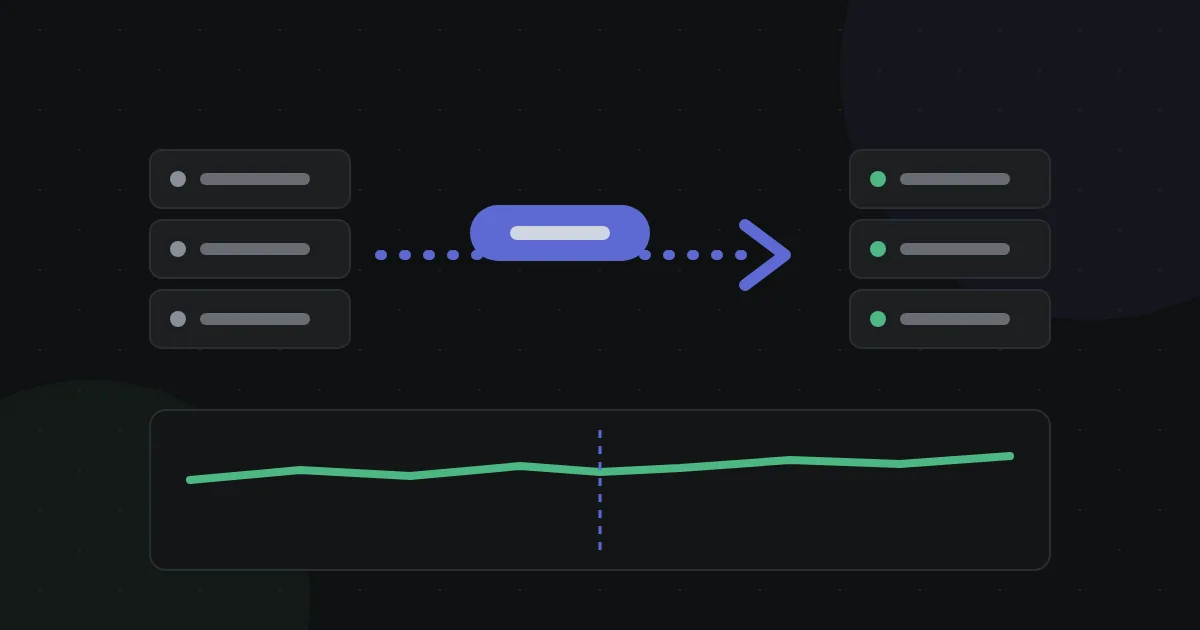
To change hosting or redesign your website without losing Google rankings, every old address must keep leading to the same content (or its exact equivalent), with the same titles and text, and Google must be able to crawl everything. Rankings are rarely lost because of the move itself. They are lost through oversights: missing redirects, a noindex left over from the test environment, or URLs that changed without notice. This is the checklist I use, split into before, during and after.
Before: inventory and map
1. Build a URL inventory
Before touching anything, you need the full list of addresses on the current site. Pull it from several sources, because no single one is complete:
- A crawl of the site with a crawling tool.
- The current sitemap.
- Search Console: the Performance report shows which pages get visits from Google.
- Your analytics: which pages get traffic from any source.
Keep everything in a spreadsheet. That list is your baseline: without it, you cannot tell what was lost.
2. Mark the pages that matter
Not all URLs are worth the same. Identify the ones that bring visits and the ones that convert (inquiries, sales, calls). Those get watched first and cannot be left without a destination.
3. Build the 301 redirect map
A 301 redirect tells Google "this page has moved permanently to this other one." It is what passes the old address's relevance to the new one. In a spreadsheet, write two columns: old URL and new URL. Simple rules:
- If the page still exists at a new address, redirect to it.
- If it is gone, redirect to the closest page by topic, not to the home page by default. Redirecting everything to the home page is often treated as a "soft 404."
- Avoid chains (A redirects to B, B redirects to C). Always point straight to the final destination.
Google's guide to site moves covers this process in detail.
4. Keep titles, text and structure
A visual redesign should not change what Google already understands about each page. Keep the <title> tags, descriptions, headings and main content. If you rewrite everything at the same time, you are changing two variables at once and you will not know which one caused a drop. Do the migration first and content improvements afterward.
5. Check hreflang and canonical
If the site has several languages, the hreflang tags must point to the new addresses and be reciprocal (the Spanish page points to the English one and vice versa). Canonicals must point to the page's own new URL, not the old one or the test environment. A canonical pointing to an address that no longer exists is a common reason pages vanish from the index.
During: the switch
6. Test in a separate environment, and lock it down
Do everything in a staging environment. But that environment must not be indexable, so it carries noindex or password protection. This opens the most common trap: the noindex that stays in production. At launch the site goes out with the "do not index me" instruction and disappears from Google without anyone noticing. Before opening the site, check the CMS setting, the meta tags and the robots.txt file. I cover this in why a website does not show up on Google.
7. Check the production robots.txt
The staging robots.txt often has a Disallow: /. If it gets copied to production, it blocks the whole site. Compare the new file with the old one before launch.
8. Ship the redirects with the site
Redirects must be live from the first minute. If the site goes live first and the redirects arrive "later," Google finds 404 errors right when it starts crawling the new site.
9. Prepare the new sitemap
Generate a sitemap with the new addresses (only those that return a 200 code and can be indexed). Have it ready to submit as soon as you launch.
A server change can break unexpected things
When you change servers, problems show up that were in nobody's plan: different PHP versions or other tools, cache settings, SSL certificates, redirect rules that worked on the old server and not on the new one, forms or scheduled tasks that stop working. None of it is visible at a glance. That is why you have to test everything after the switch: browse the site, submit the forms, complete a test purchase if there is a store, check that redirects answer with a 301, and look at images and files. Test before calling the migration done, not when a customer tells you something is broken.
After: monitoring
10. Change of Address in Search Console (if the domain changes)
If you move from one domain to another, besides the 301 redirects use Search Console's "Change of Address" tool. It needs both domains verified and the redirects already working. If only the server changes and the domain stays the same, you do not need it.
11. Submit the sitemap and inspect key pages
Submit the new sitemap. Then use URL Inspection on your most important pages to confirm Google sees them properly and nothing blocks them.
12. Watch 404 errors and coverage
Over the following weeks, check the page indexing report and 404 errors in Search Console. Compare them with the initial inventory: a URL that had visits and now returns 404 needs its redirect. Some fluctuation at the start is normal; important pages disappearing is not.
13. Monitor performance
A new server can be faster or slower than the old one. Measure load speed with Search Console's page experience report and other measurement tools, and fix anything that got worse. Speed affects both your visitors and how Google crawls the site.
14. Compare traffic over several weeks
Look at Search Console performance and your analytics week by week, and compare with the period before the change. If one section drops sharply and the rest does not, that is where the problem is: it is almost always redirects or content that changed.
When the site is an online store
E-commerce adds another risk: product pages, categories and filters often have many URLs, and each one counts. To see how a store looks with a well-built structure, check the jewelry store demo.
Frequently asked questions
Does changing hosting affect SEO?
It should not, as long as addresses, content and configuration stay the same. What does matter is the new server's speed and uptime, and the errors that appear during the move. That is why you test everything afterward.
How long should I keep 301 redirects?
Google recommends keeping them for at least a year. In practice, keep them as long as the old address still gets visits or links.
Can I redesign and change the content at the same time?
You can, but it is safer to separate them. If you do the technical migration first and the content later, when rankings change you know why.
What if I already migrated and lost traffic?
Compare the old inventory with the current site. Look for noindex, a blocking robots.txt, URLs without redirects, wrong canonicals and 404 errors. Fix those first and track progress week by week.